
01 / DISCOVER
Discover
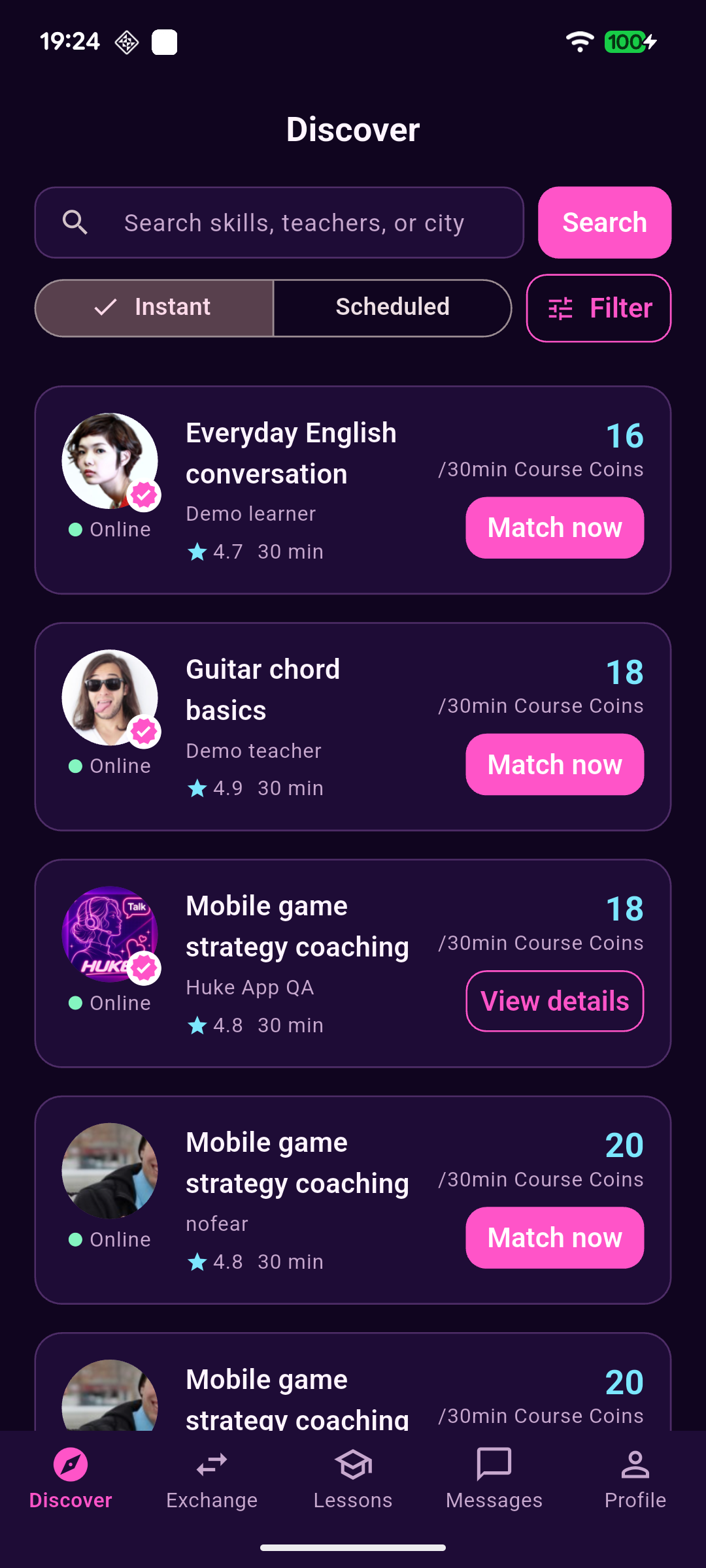
Search skills, teachers, or cities; filter instant and scheduled lessons; then review skills, ratings, and availability.
Search · Filter · Skill detailsTrade skills, not cash
HuKe takes an exchange from matching through chat, booking, and a video room, then closes it with settlement and feedback. Every step makes the next action clear.
The current app map
This overview follows the current app navigation and its live detail screens.
Search skills, teachers, or cities; filter instant and scheduled lessons; then review skills, ratings, and availability.
Search · Filter · Skill detailsPublish or edit a skill, manage teaching availability, time balance, Course Coin balance, and incoming requests.
Publish · Balance · RequestsTrack pending, upcoming, confirmation, and completed lessons; open their details or join a video room.
Status · Room · SettlementChats, system notifications, lesson updates, and account changes live together. Conversations support text and images.
Chats · Notices · ImagesEdit public details and manage your account, permissions, notifications, blocked users, policies, help, and feedback tickets.
Account · Control · HelpA visible exchange desk
Teaching earns minutes; lesson bookings can use Course Coins. Exchange shows your availability and requests that need attention, so important information is never buried in the flow.
Conversations that carry context
Conversations support image messages for exercises, reference material, or lesson questions. After a lesson closes, its conversation may become read-only; blocking a user also stops further messages.
A complete lesson loop
Requests, chat, video rooms, and dispute tools all work from the same lesson record.
Search teachers, skills, or cities; review goals, learners, languages, duration, and ratings.
Ask about the lesson in Messages and send an image when it helps explain the context.
Choose instant or scheduled, confirm time or Course Coin exchange, and read the lesson rules.
Enter a one-to-one video room at the agreed time, with camera, microphone, and lesson timing.
Both participants confirm the actual duration and leave feedback; disputes and reports are available when needed.
Control stays with you
There is a direct user entry for permissions, account deletion, deleted chats, and feedback tickets.
Camera and microphone are used only for video rooms. Notification access is managed in system settings.
Read about permissions ↗Update your email and password, review your login account, submit a deletion request, and track its status.
Read about your rights ↗Report from a public profile, chat, or lesson. Blocking stops the user from contacting you further.
Read about safety ↗Help covers accounts, lessons, permissions, and reporting. Feedback becomes a trackable support ticket.
Read common questions ↗Small questions, clear answers
Common guidance for exchange, chat, Course Coin purchases, permissions, and account management.
Time records the teaching minutes you earn. Course Coins are used for in-app lesson exchange. They cannot be withdrawn, transferred, or exchanged for legal currency; related purchases and lesson activity appear in the Course Coin record.
Yes. Conversations support text and images. Send only content relevant to the lesson, and do not upload identity documents, payment passwords, or other unnecessary sensitive information.
They are requested and used only when you enter a video room. You can review their status in Profile under Permissions & notifications and manage access in system settings.
Open the lesson details to review its status, then use the Message, Dispute, or Report entry. Closed lessons may keep chat read-only, and blocked users cannot send further messages.
Submit a deletion request in Profile > Account. The page explains the processing arrangement; some lesson, payment, and safety records may need to remain for legal or dispute-handling purposes.
The Course Coin screen provides in-app store purchase and restore-purchase entries. Availability depends on the current device and store environment.
Built for one useful exchange
HuKe currently brings skill discovery, lesson exchange, chat images, video rooms, Course Coin activity, and help support together in one app.